
The Best Idea I’ve Ever Had
Seriously.
I feel like a brand new mom. A new wife.
This woman who can accomplish everything she sets out to do.
It’s magical.
. . .
Ok, so I’m not Mary Poppins or anything (although I do have the bag), but this one thing has been super transformational in how I go about my day.
Here’s what I did:
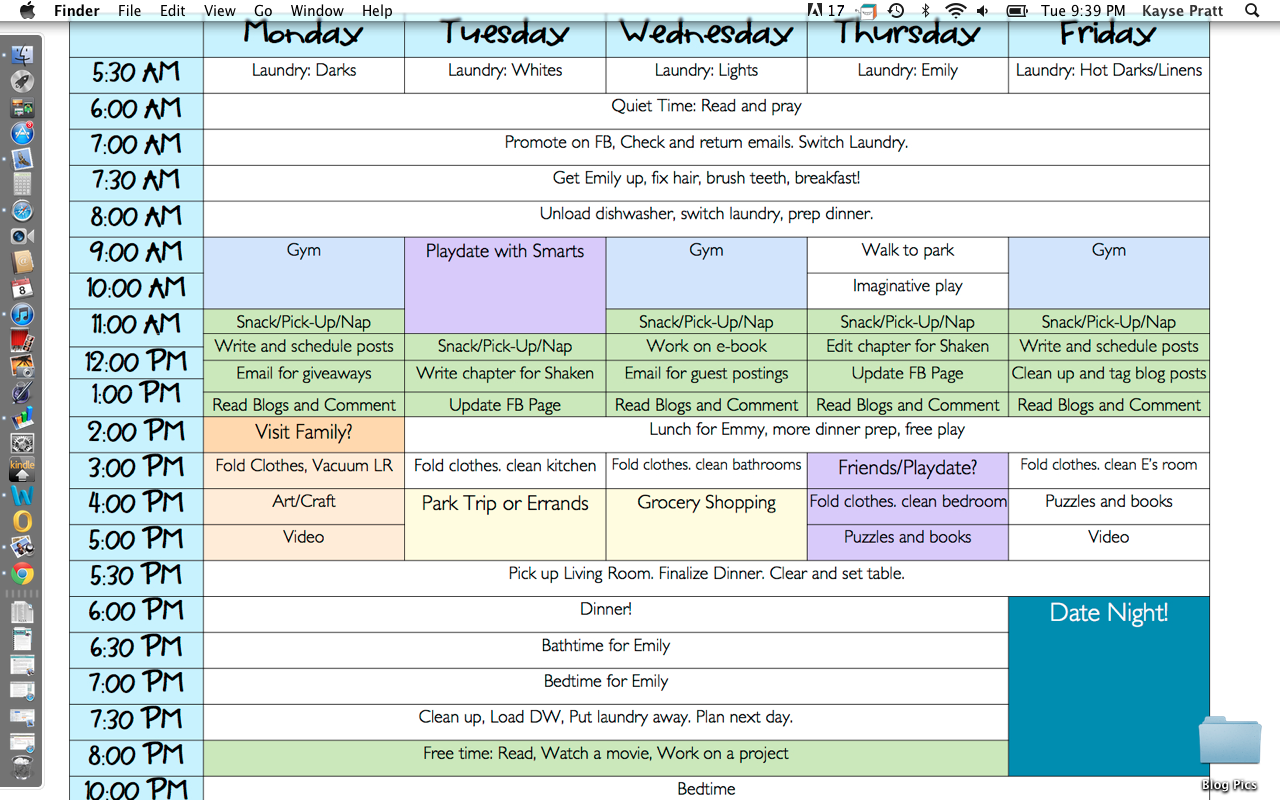
I set my weekly schedule as my desktop.
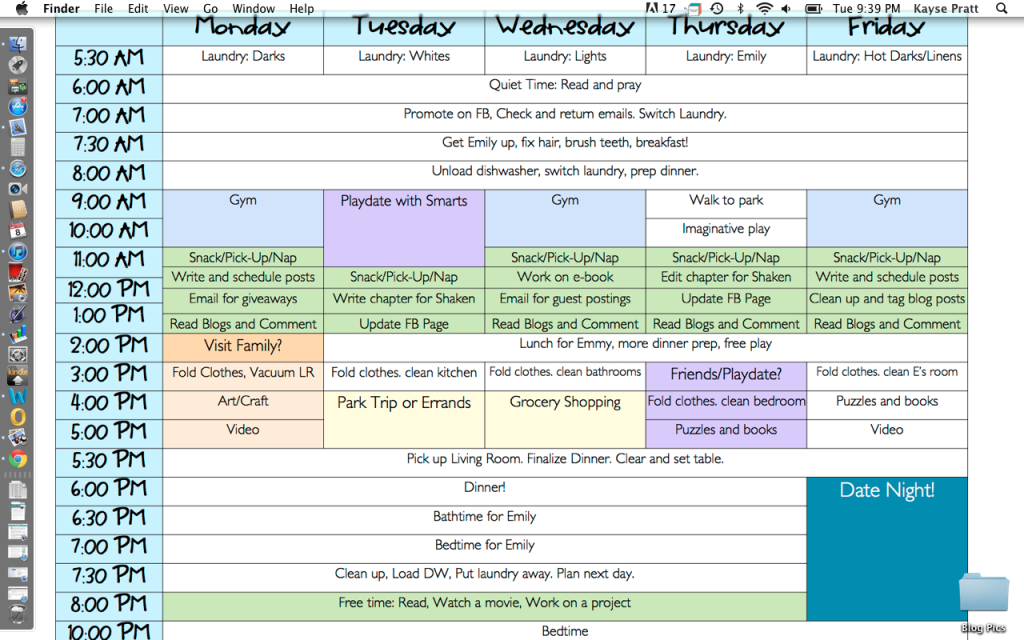
Seriously. Best idea I’ve ever had.
Here’s the thing, I’m on the computer a LOT. And if I’m not on it, then it’s at least open and on my desk, which faces our common area, so I can see it. And this whole stay-at-home-mom thing really requires some sort of schedule if I’m not going to stay in my pajamas all day.
Also, the computer is the place I tend to waste the most time (*cough* facebook *cough*). So having the schedule RIGHT THERE helps me stay on track!
I have gotten so many loads of laundry done already this week. And even done some cleaning. And writing. And gone to the gym. WHO AM I???
I’m geekily excited about it. And as soon as I posted it on my FB page, lots of you seemed to be excited too! Which I thought was fun. 🙂
So, ladies and gentlemen, you asked for a tutorial, and here is is!
How to set your weekly schedule as your desktop:
1. Um… create a schedule.
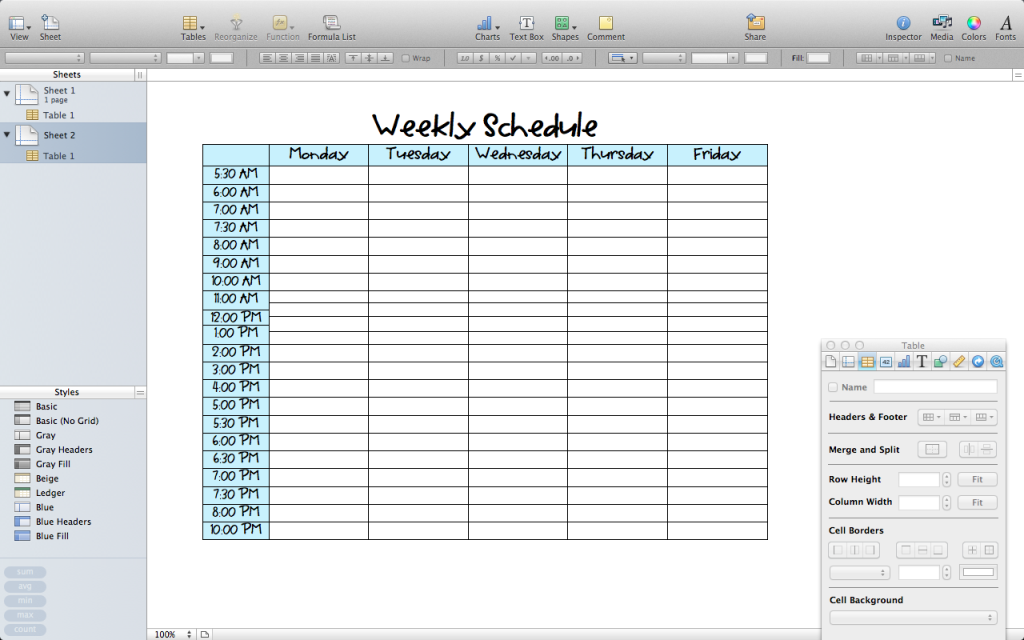
I used (and love) Numbers, which is the Apple version of Excel. Except way better.
But you could use excel too, I guess.
Start with a basic spreadsheet, days across the top, times down the side.
Make sure it will all fit into one page.
Use fun colors and fonts. Obviously.
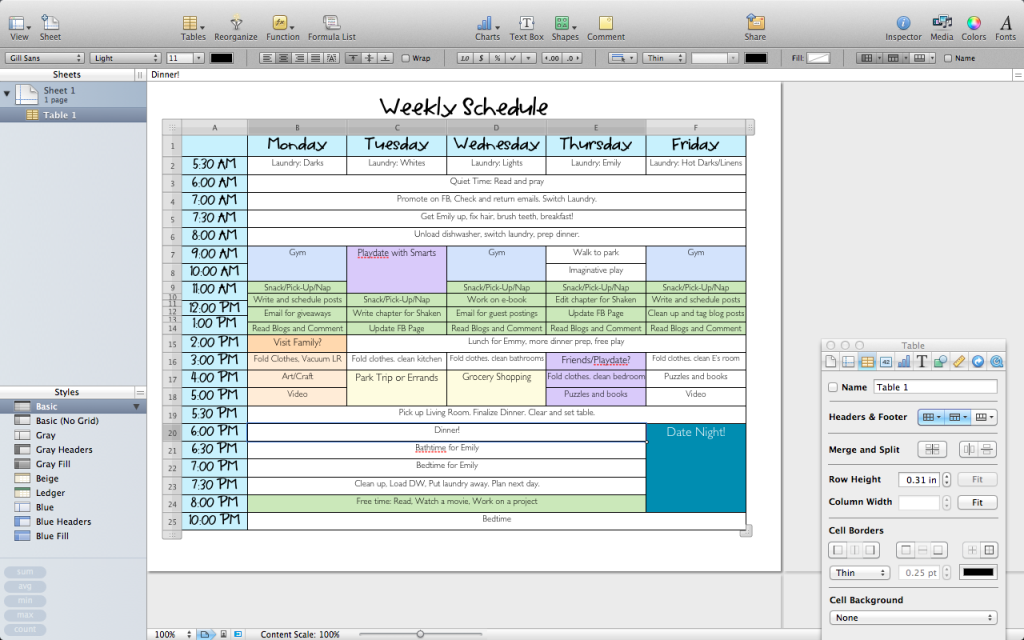 Merge and split cells as needed to format the schedule the way you want it.
Again, use fun colors and fonts.
Also, include date night. Super important.
2. Save as a PDF.
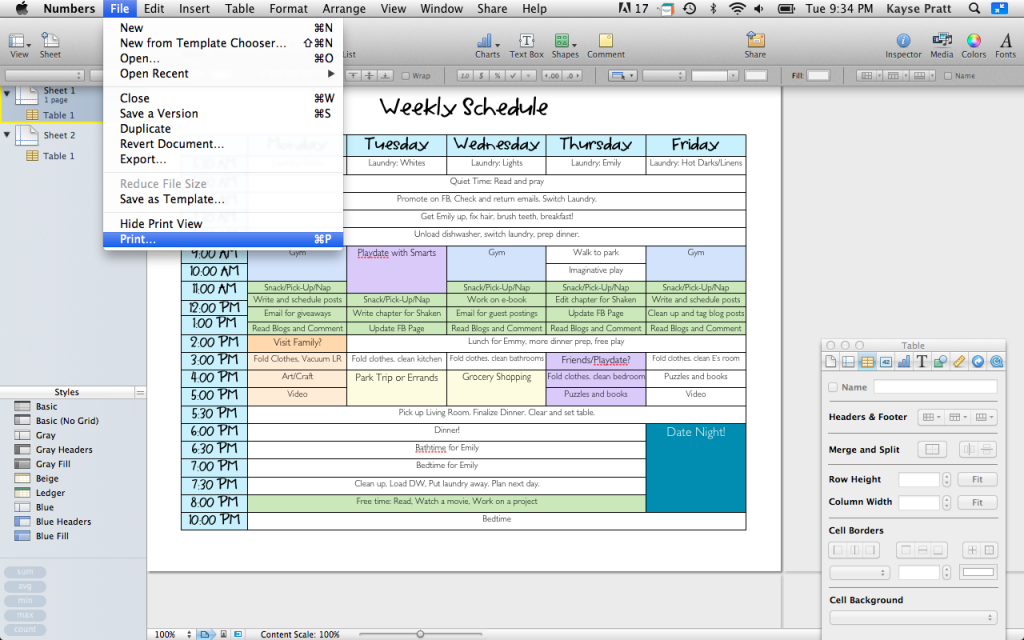 To save as a PDF, go to File, then Print.
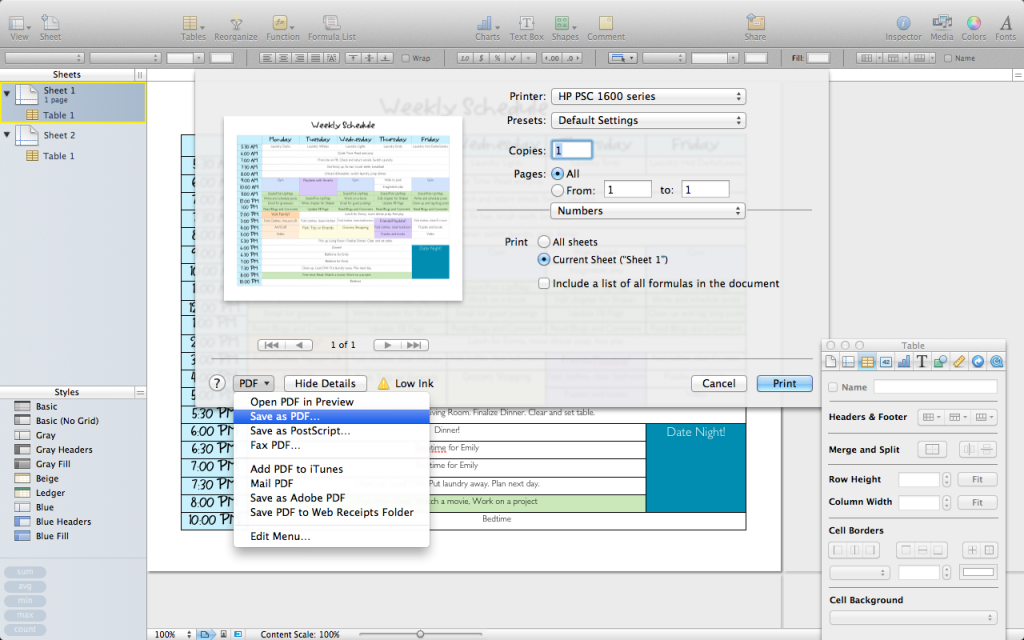 In the bottom left corner of the print menu, click on PDF and then Save As PDF.
Save it to your desktop, or a place that’s easy to find.
3. Save as a JPEG. (My computer won’t set a PDF as my desktop – it needs to be in picture format. Of course, there may be a way I just don’t know about, but saving it as a JPEG worked best for me.)
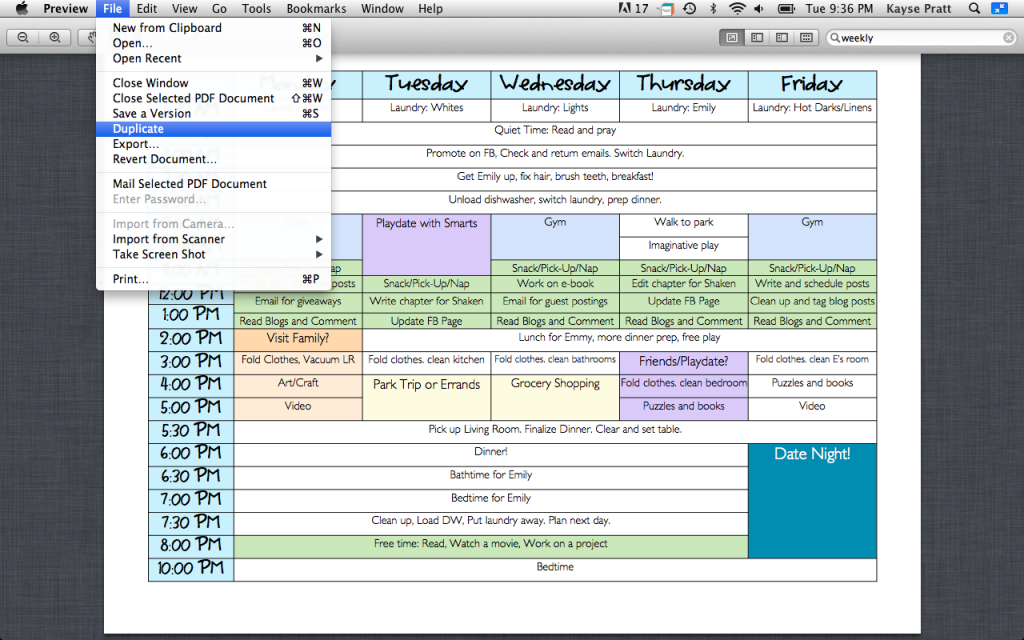 Open the PDF that you just saved and make a copy (Duplicate on a Mac).
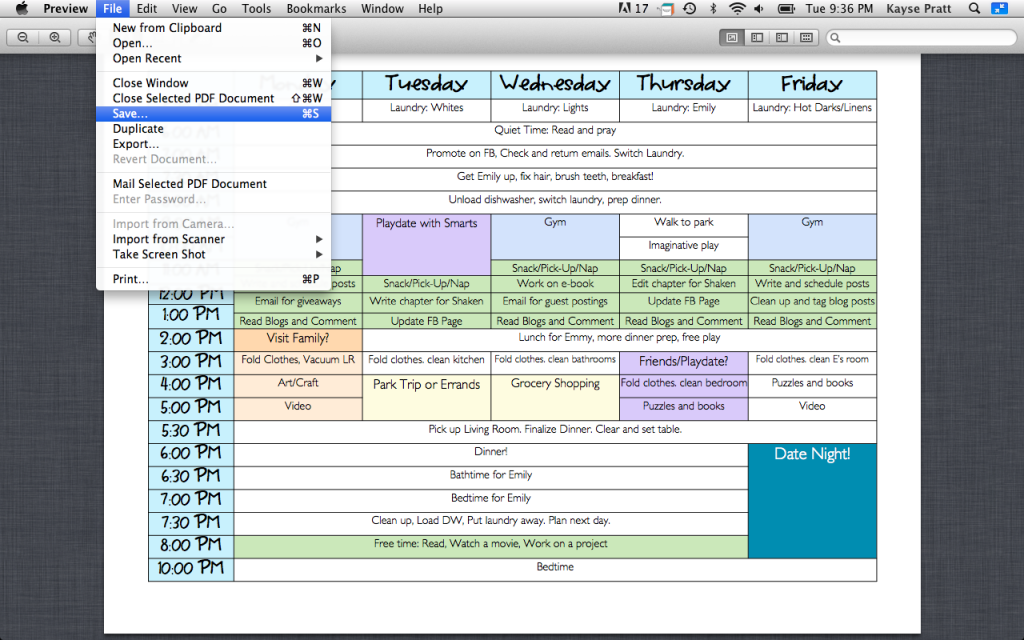 Click on Save.
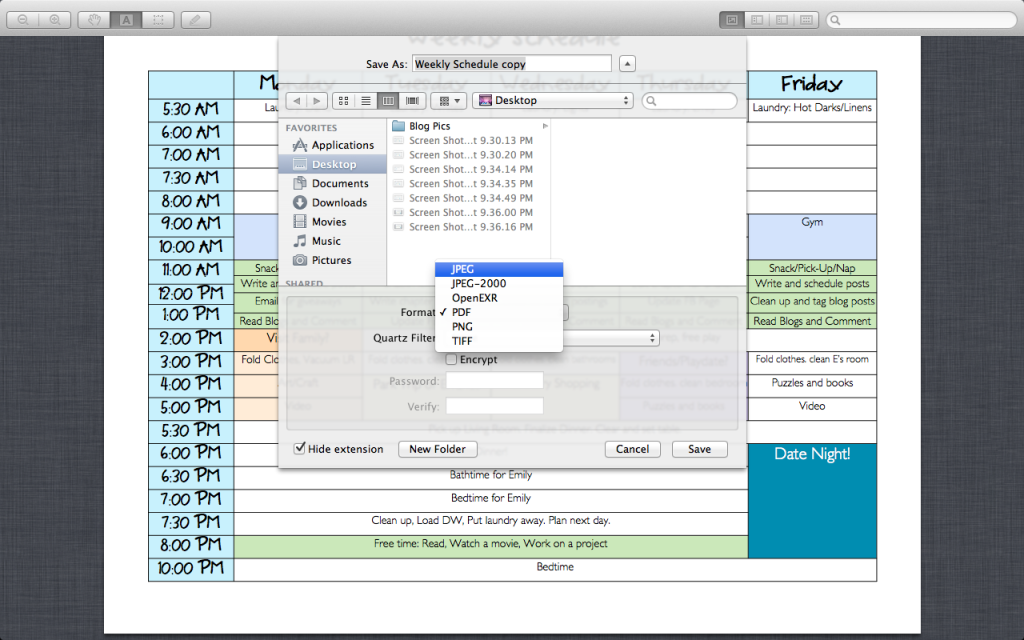 In the Save menu, click on the drop down Format menu, and select JPEG. Save.
4. Import photo to iPhoto, Set as Desktop!
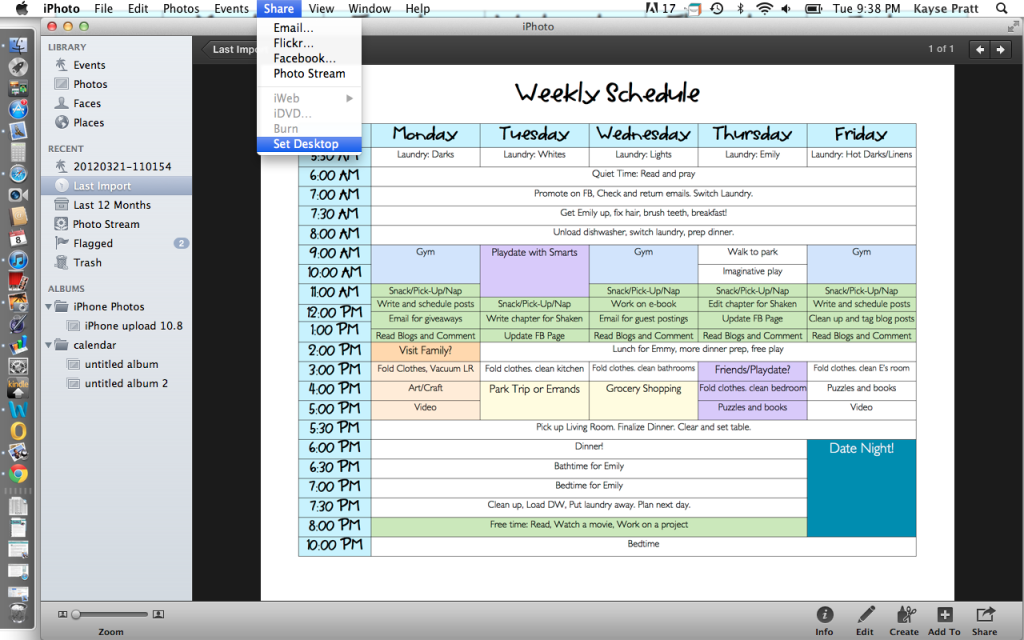 Open the photo within iPhoto. Click on Share, and then select Set Desktop.
And voila!
Desktop schedule. Right at your fingertips.
Keeping you from unnecessary Facebook feed refreshes.
You’re welcome. 🙂
But seriously, this is my new favorite thing.
How about you? Is setting your schedule as your desktop something that you’d use? Something that you’d benefit from?

Kayse Pratt serves Christian women as a writer + designer, creating home + life management resources that help those women plan their days around what matters most. She’s created the most unique planner on the market, helped over 400 women create custom home management plans, and works with hundreds of women each month inside her membership, teaching them how to plan their days around what matters most. When she’s not designing printables or writing essays, you’ll find Kayse homeschooling her kids, reading a cheesy novel with a giant cup of tea in hand, or watching an old show from the 90’s with her husband, who is her very best friend.









I keep hoping someone will develop a decent calendar app to do exactly this! Nice workaround!
No, I do not like having a schedule like this… I have tried several times in the past and it just does not work for our family. When / if I fall behind, I feel like a complete failure and then I feel guilty. I end up racing around like a frenzied mad woman trying to play catch up just so I am back on track with the schedule. I also do not like “scheduling” in “time” with my kiddos. The beauty of being a stay at home / homeschooling mama is that I have this beautiful time together with my children, and the freedom to enjoy that time together, unscheduled. As it is, I think our society is way too over-scheduled and I firmly believe that is something we need less of, not more of… just my two cents 😉
I would totally do that if my schedule were consistent week to week, which it’s not. 🙁 may have to find some way to modify that idea. Awesome idea!
Great idea!
Slapping forehead! Wow, what a great idea! Thanks!
Very nice – and you broke it down into such easy steps! Thanks for the reminder that organization increases my productivity! 🙂
Great idea! I may need this in the future…